Task History
The Task History menu, accessible via Portal > Historical Reports, allows users to browse agent tasks, utilize powerful filters, playback recordings, and evaluate tasks.
Overview
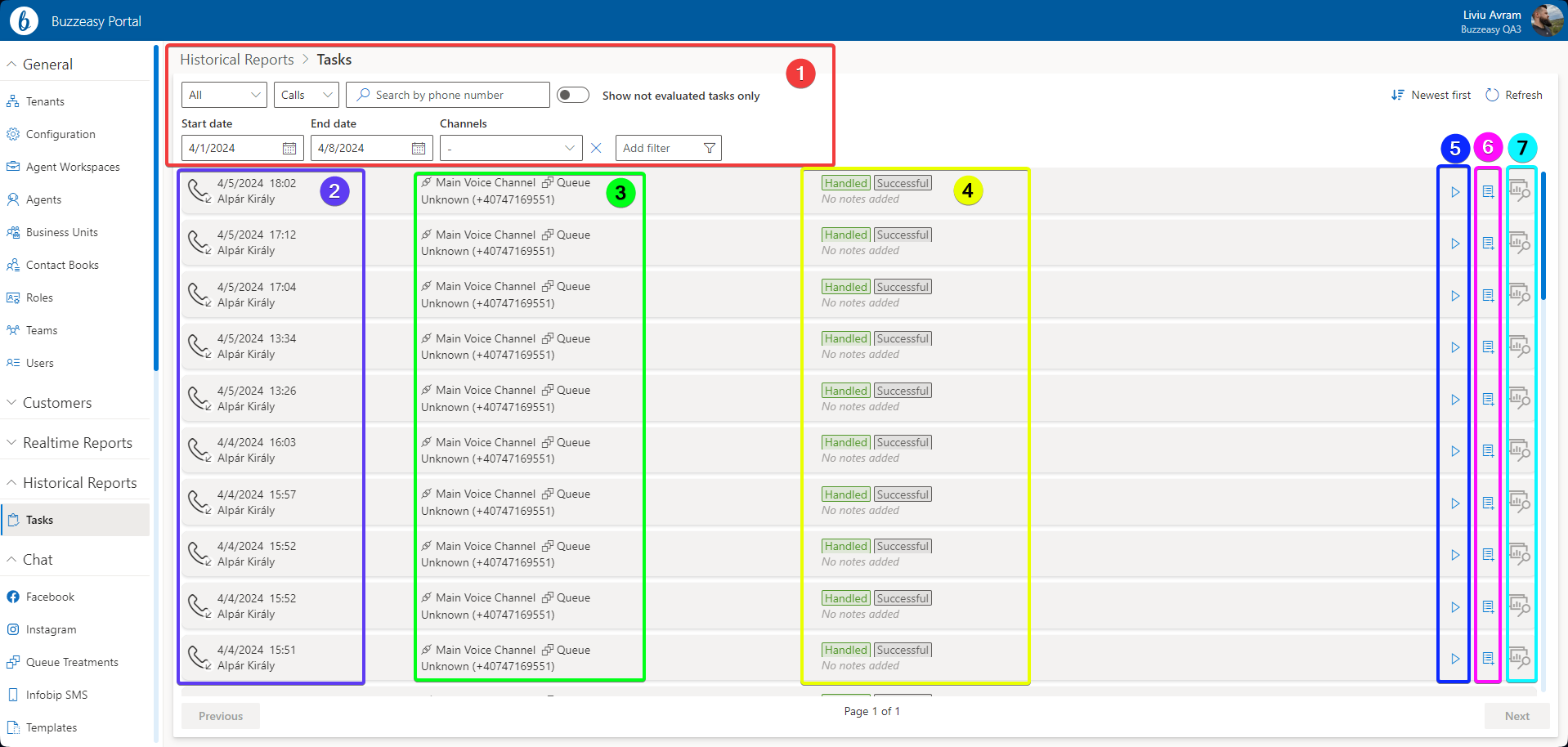
The above image represents the task history view. Additional details about each highlighted area are described through this article.
- The top area highlight represents the Filters area.
- This is the first column. Hover your mouse over the icons to reveal additional details. At a glance, it contains:
- Media type icon: Indicates whether the task is Voice, Chat, or Email.
- Direction icon: Indicates whether the task is Inbound or Outbound.
- Timestamp: Indicates the time when the task ended.
- Agent name: Displays the name of the agent handling the task.
- This is the second column, it contains:
- Channel name: Displays the name of the channel from which the task originated.
- Queue name: Displays the name of the queue from which the task originated. This is not applicable for outbound conversations.
- Customer name & identifier: Shows the customer's name if known, along with their identifier, such as phone number or email.
- This is the third column, it contains:
- Task result tag: Indicates the result of the task.
- Completion code: Displays the completion code set by the agent, if any and applicable.
- Notes: Displays notes left by the agent or automatically added by the system.
- This is the playback button, it allows the playback of the recording associated with the task.
- This is the task evaluation button, it allows the selection of a QM tagged script and initiation of an evaluation for the task.
- This is the collected data for the task, hover your mouse over it to see the data, if available.
Filters
When accessing the Task History, it is initially pre-filtered by direction, media group, and time period. Users can adjust their criteria using the enhanced suite of filters outlined below:
First-row filters:
- Direction: All, Inbound, Outbound. Indicates the direction of the conversation.
- Media Group: Call, Emails, Chats.
- Search by phone/email. Enables searching. Note: Searching by phone number is not available if the media group filter is set to email or chat.
- Show not evaluated tasks only. By default, this option is off. Enable it to display tasks without associated evaluations.
Second-row filters:
- Start date: Sets the start date of the time interval. Default is 7 days ago.
- End date: Sets the end date of the time interval. Default is today's date.
- Channels: Allows selection of one or more channels from the list. By default, no filter is applied.
- Add filter button. Enables adding additional filters such as:
- Queue: Filters tasks by queue.
- Agent: Filters tasks by agent name.
- CompletionCode: Filters tasks by completion codes used.
- Evaluator: Filters tasks by the person who completed the evaluation.
The list can also be ordered by the date-time, newest first or oldest first.
Delete chat messages
In case sensitive or inappropriate data was received or exchanged with the customer, you can remove the offending message from storage. It will be gone from all reports, the Customer activity history list on the portal and on the agent website too.
This is a physical removal—we will only retain a placeholder item in place of the original message.
Make sure the list presents chat items.
Click the View and download conversation history (eye icon) in the entry of choice. The two-party transcript modal opens up showing the full list of messages exchanged by the agent and the customer.
Hover the mouse over the offending message. The datestamp and a trashcan icon show up next to it.
Click the trashcan icon and confirm your deletion intent. The message is physically removed and a Message deleted by XY note is added instead, with your name.
Evaluations
Qualified personnel, typically quality analysts, managers, or supervisors, conduct evaluations in a call center.
To initiate an evaluation, click the evaluation icon located on each task row on the right side of the screen.
The recording linked to the task will begin, and controls will be visible at the bottom of your screen. You must select a script to commence your evaluation.
Important
Scripts must include the [QM] tag in their title to appear in this list and are created by Graia CCaaS engineers as per your requirements, your IT personnel or your supervisors.
Once you've chosen your script, click the "Start Evaluation" button.
Proceed through your evaluation script. Upon completion of the evaluation and reaching the end of the script, an email will be sent to the agent containing a link to the evaluation for their viewing. Your email address will be added to the CC of the email as well, ensuring you retain a copy of the evaluation.
Your evaluation scripts may include a total score and a rating, both of which will be displayed in the task history and email.
Export task history
The Task history report allows exporting the filtered results to CSV, allowing supervisors to store their data for later use. To do so, navigate to the Task History report, apply your desired filters, then click the Export button and confirm the choice. The system will generate a CSV file with the data corresponding to your filters.
The exported CSV contains:
- WorkitemID: Unique ID of the task.
- Media Type: The media type of the task, this depends on the channel type the task came through.
- Direction: Inbound or outbound, depending on the task direction.
- Start Date (UTC): UTC timestamp of when the task was created by the system for the agent.
- End Date (UTC): UTC timestamp of when the task was closed by the agent or the system.
- Handling Agent: Name of the agent handling the task.
- Task Duration: Calculated value between start date and end date.
- Talk Time: Calculated value of Task duration minus preview time and wrap up time.
- Customer Name: If available, the customer name, otherwise, the system prefills the data with Unknown.
- Channel Name: The name of the channel the task was generated from.
- Queue Name: The name of the queue the task was generated from.
- WI Result: The task result generated by the system, generally it can take values such as Handled, Failed, Abandoned.
- WI Notes: Any task notes left by the agent or AI generated during wrap up.
- Completion Code: Completion code used by the agent for the task during wrap up.
- Total Score: If a supervisor evaluated a task, the evaluation score will be displayed here.
- Evaluated By: Shows the name of the supervisor that evaluated the task.
- Collected Data key value pairs: Collected data through scripting will be saved as additional columns based on the variable names used as well as the data collected by the agent as the field value.